The steps to install Windows 10 from USB are as follows:
Step 1: Insert the Bootable USB Drive and Restart the Device
To boot Windows 10 with USB, restart the device & enter the boot menu option. On the screen, click on Next by leaving all the options as it is.
Note: The method to enter the boot menu is different for different devices. Sometimes, pressing the F2 key can lead to the boot menu. It is advisable to search for the key on the internet along with the name of the motherboard. Because the key depends upon the type of motherboard installed in the device.
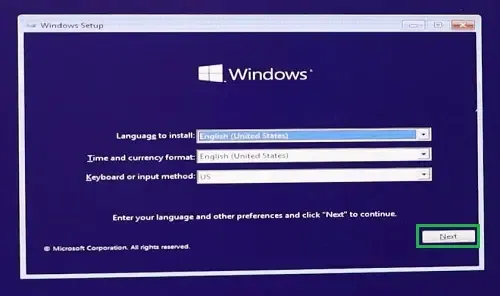
Step 2: Proceed to Install
Now, click on the Install Now button.
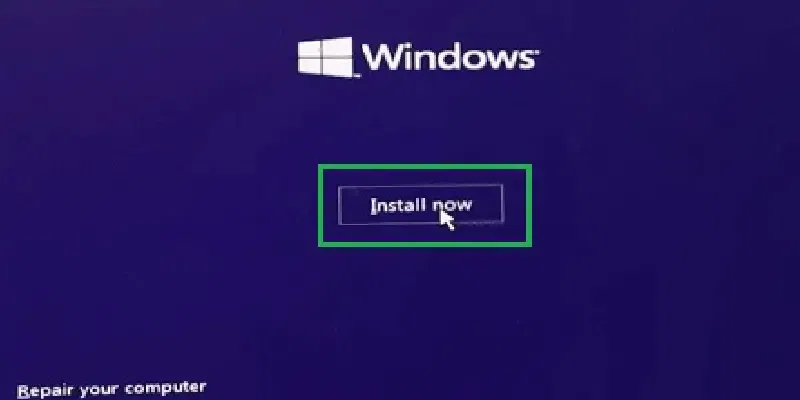
Click to Install now
Step 3: Proceed ahead with or without Product Key
In the next window, it will ask for the Product Key. Click on the option below to move ahead without Product Key.
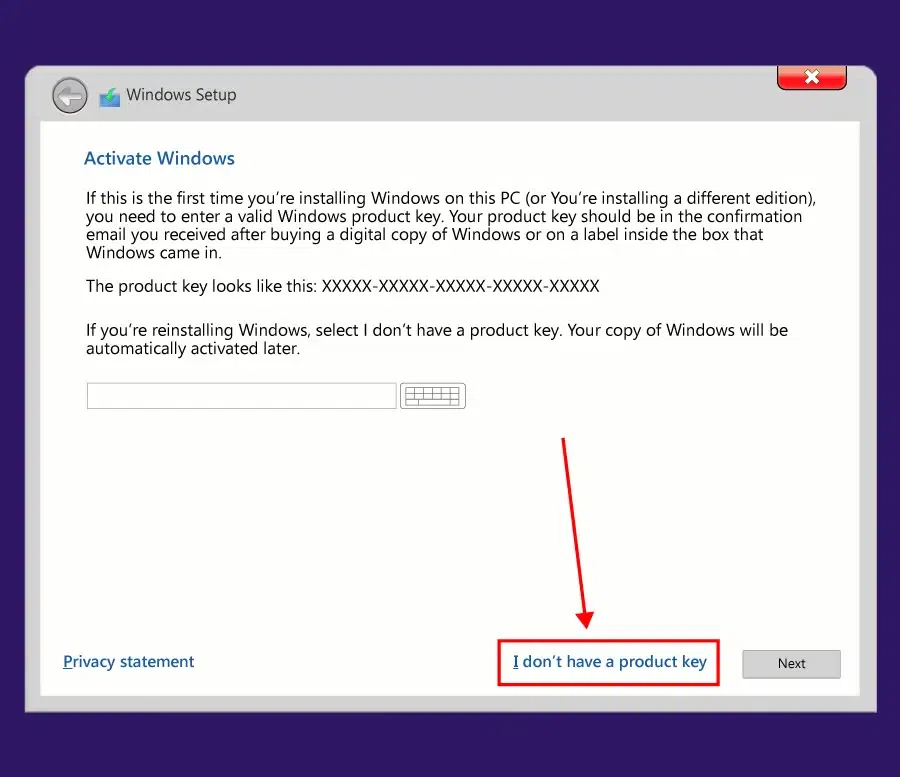
Step 4: Choose Installation Type
On the next page, so many options will be present for Windows 10. Select the Default one & click Next.
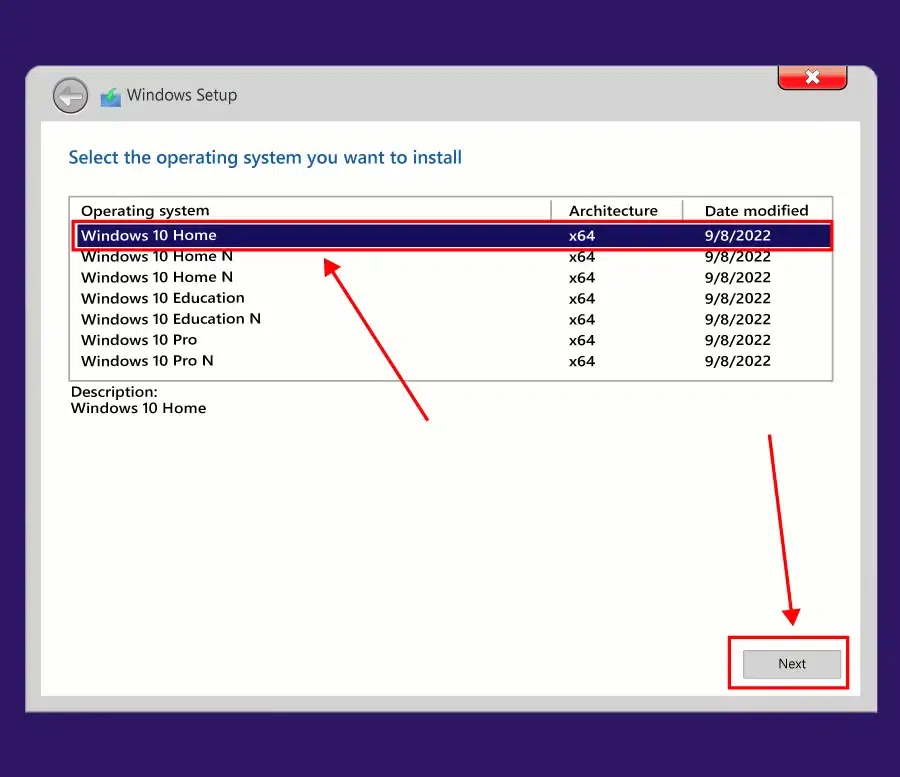
Installation type
Step 5: Proceed with the License
Click on the Checkbox as consent for the terms & conditions. And click on the Next button. It is advisable to read all the items & conditions before moving ahead.
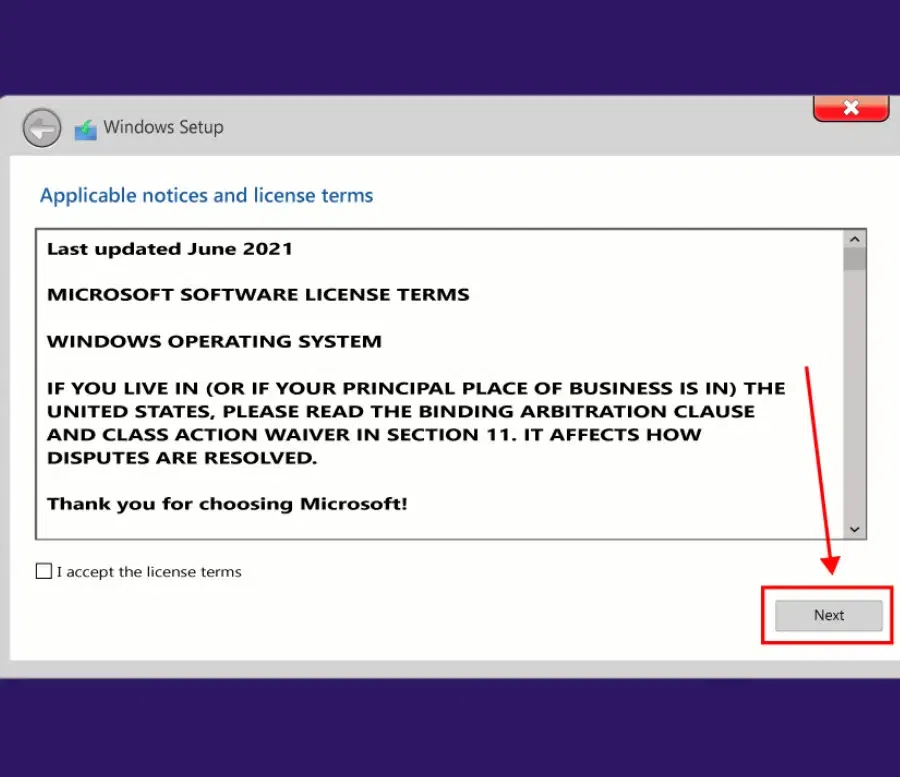 License and Agreement
Step 6: Begin the Installation by clicking on the "Upgrade" option
Now, click on the Upgrade option to move all the files & supported applications to Windows 10 without occurring any error.
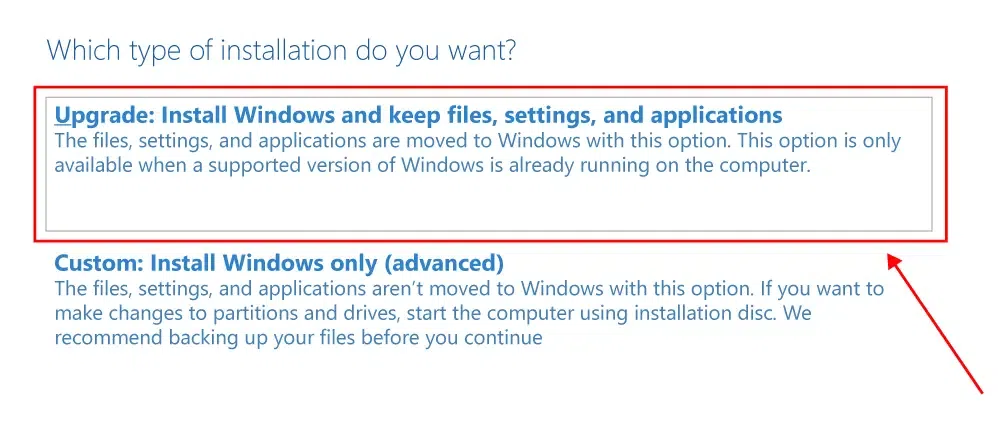
Upgrade
Finish Setting up Windows 10
Now, the installation process is started. Wait till the installation is completed.
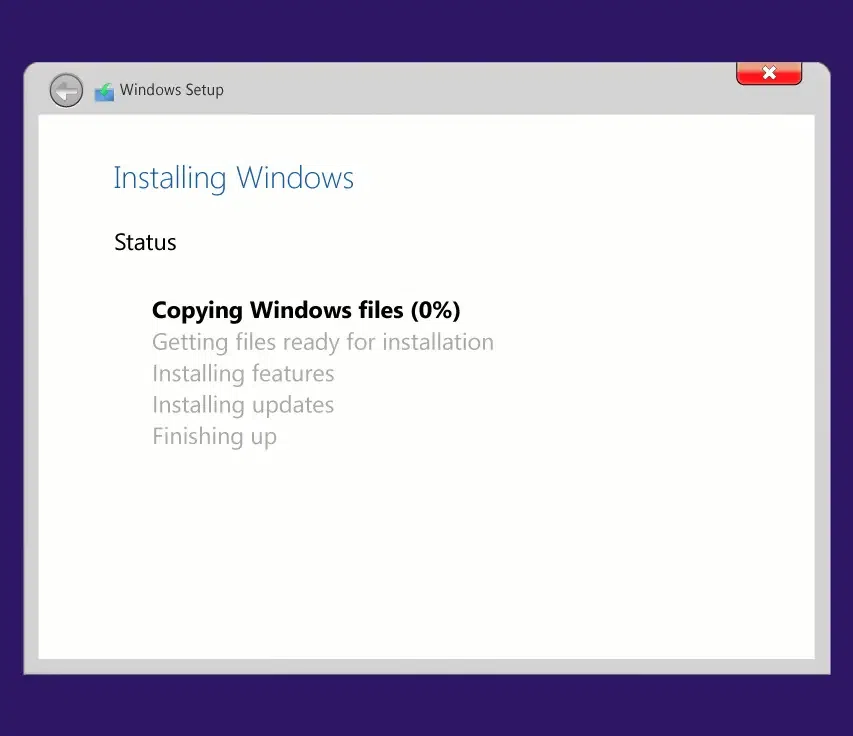
Complete-Installation-of-Windows-10 Complete Installation of Windows 10
Hence, we have successfully installed Windows 10 operating system using a USB drive on any computer or laptop.
By following these steps, you can successfully install Windows 10 from a USB flash drive, providing a fresh and efficient operating system experience.